Skip to content

Features

Everything between the first device and the final handoff

Revloy follows a project from the first device on site to the moment your customer opens the handoff. Here is what each part does.

Capture on site

Built for the phone in a technician’s pocket

The capture screens are made for job sites: short forms, large buttons and a camera that opens straight from the page. There is nothing to install.
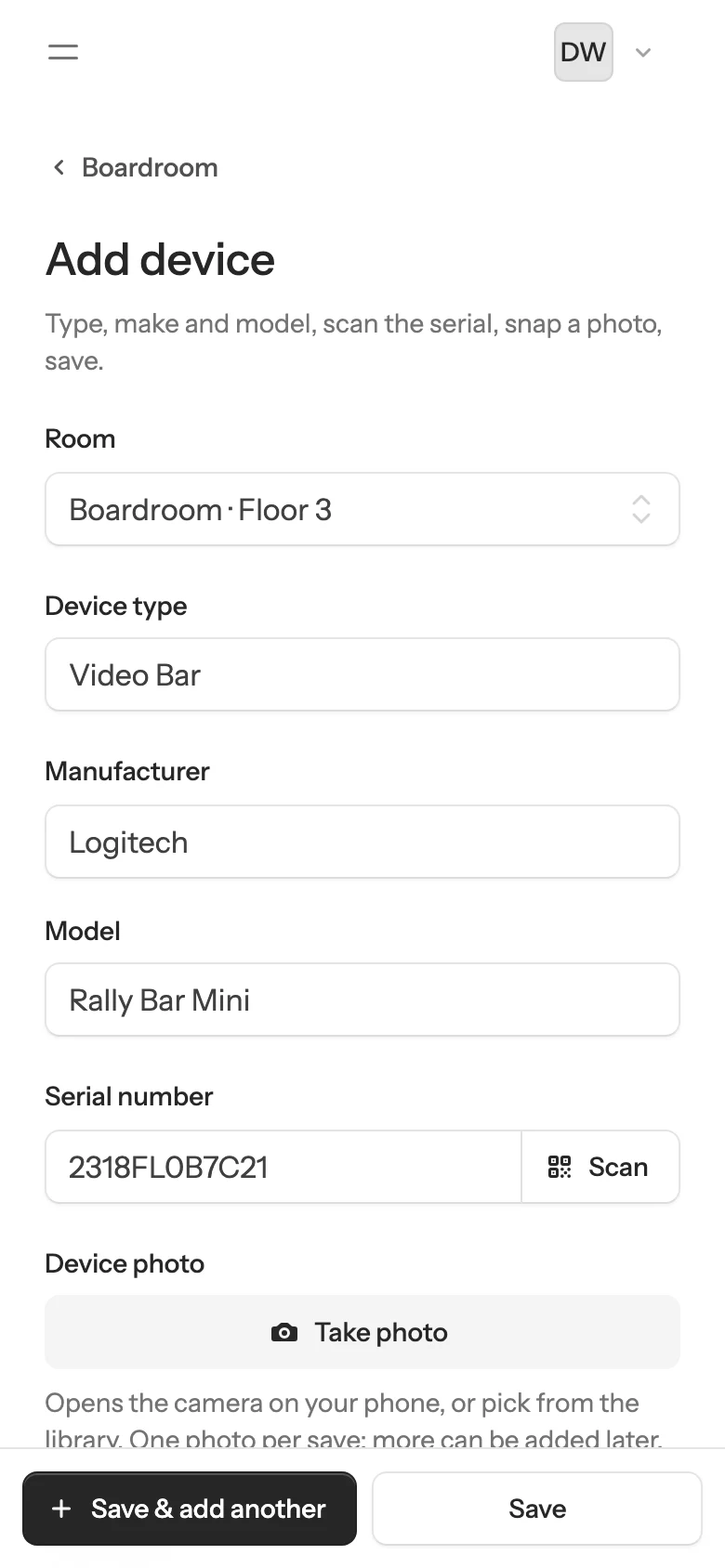
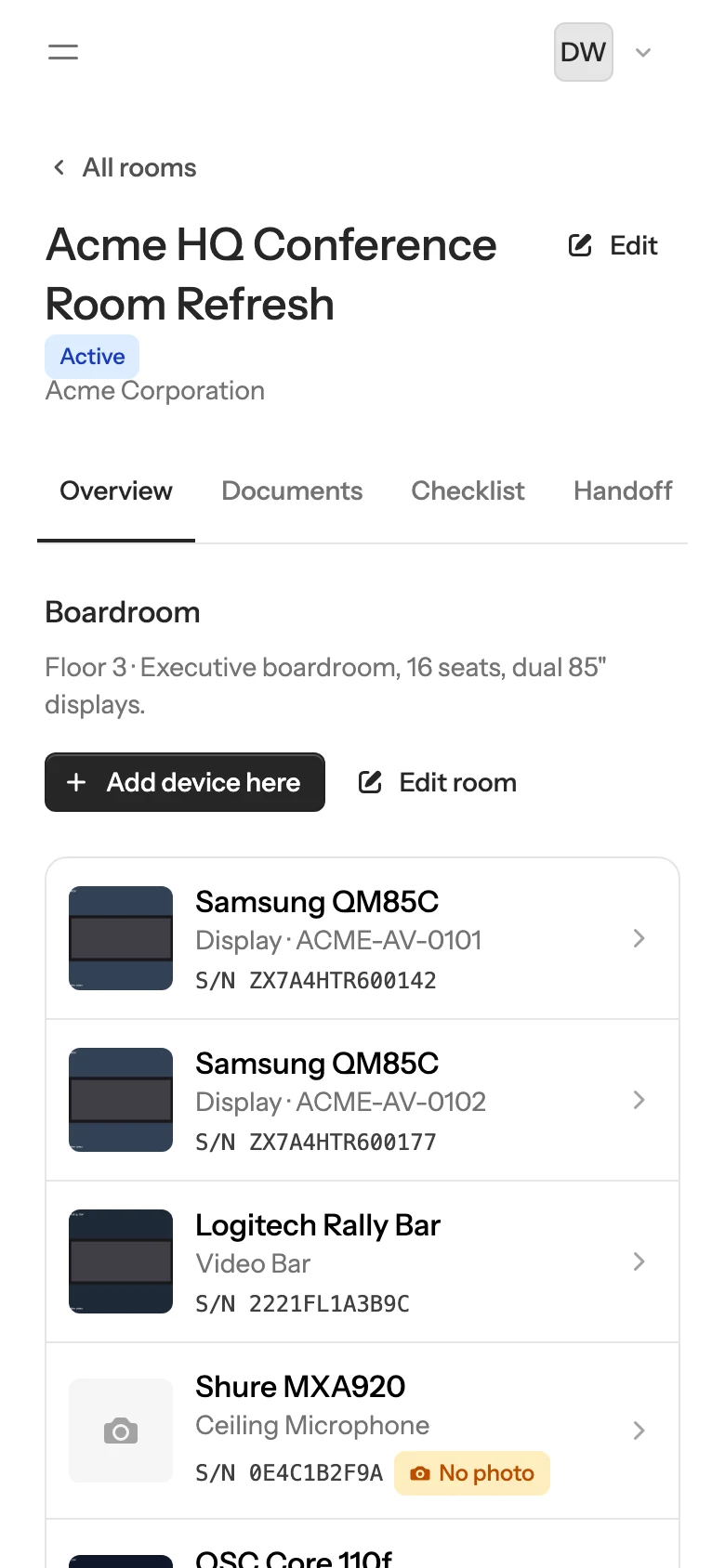
  • Choose a room, then enter the device type, manufacturer, model and serial number.
  • Scan serial-number barcodes with the phone camera, or type them in.
  • Take the device photo in the same step and add more photos later.
  • Save and add another to keep moving through the room.
Add device form on a phone with a Take photo button and Save and add another.
Room page on a phone listing devices with photos and serial numbers.

Device records

A complete record for every device

Each device keeps the details a service technician will want two years from now.
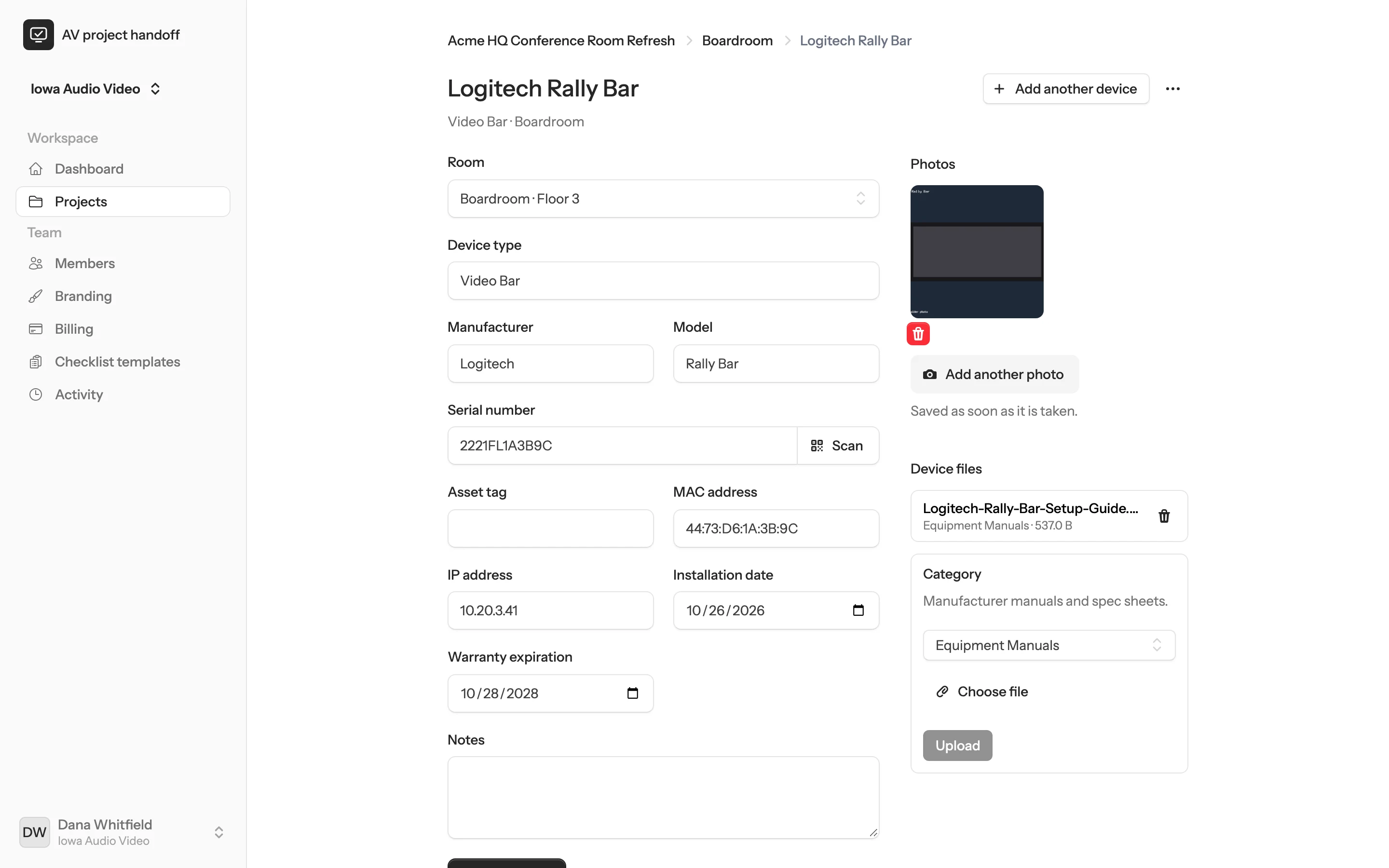
  • Serial number, asset tag, MAC address and IP address.
  • Installation date and warranty expiration.
  • Photos and notes, plus device files such as manuals, warranties and configuration backups.
Device page for a video bar with room, serial number, MAC and IP address, warranty date, photo and attached manual.

Rooms

Organized room by room

Group equipment by room and floor, the way your customer thinks about the building. Each room lists its devices and flags anything still missing.
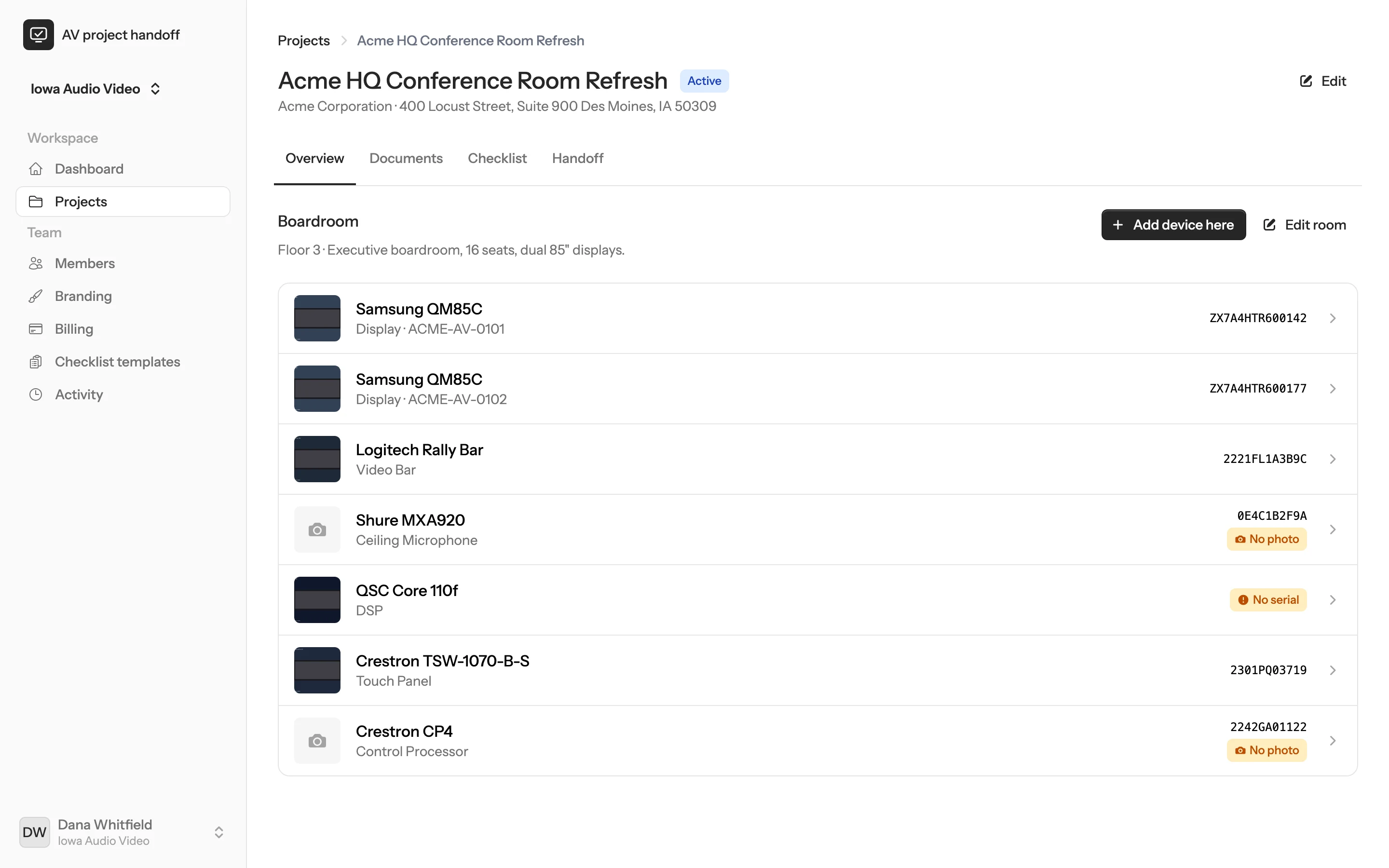
  • Room names, floors and descriptions carry through to the portal and the PDF.
  • Devices without a photo or serial number are flagged where you can see them.
  • Add a device straight into the room you are standing in.
Room page listing installed devices with photos, serial numbers and missing photo or serial warnings.

Documents

Every drawing, manual and backup in its place

Upload up to 20 files at a time and file them by category, for the whole project or for a specific room.
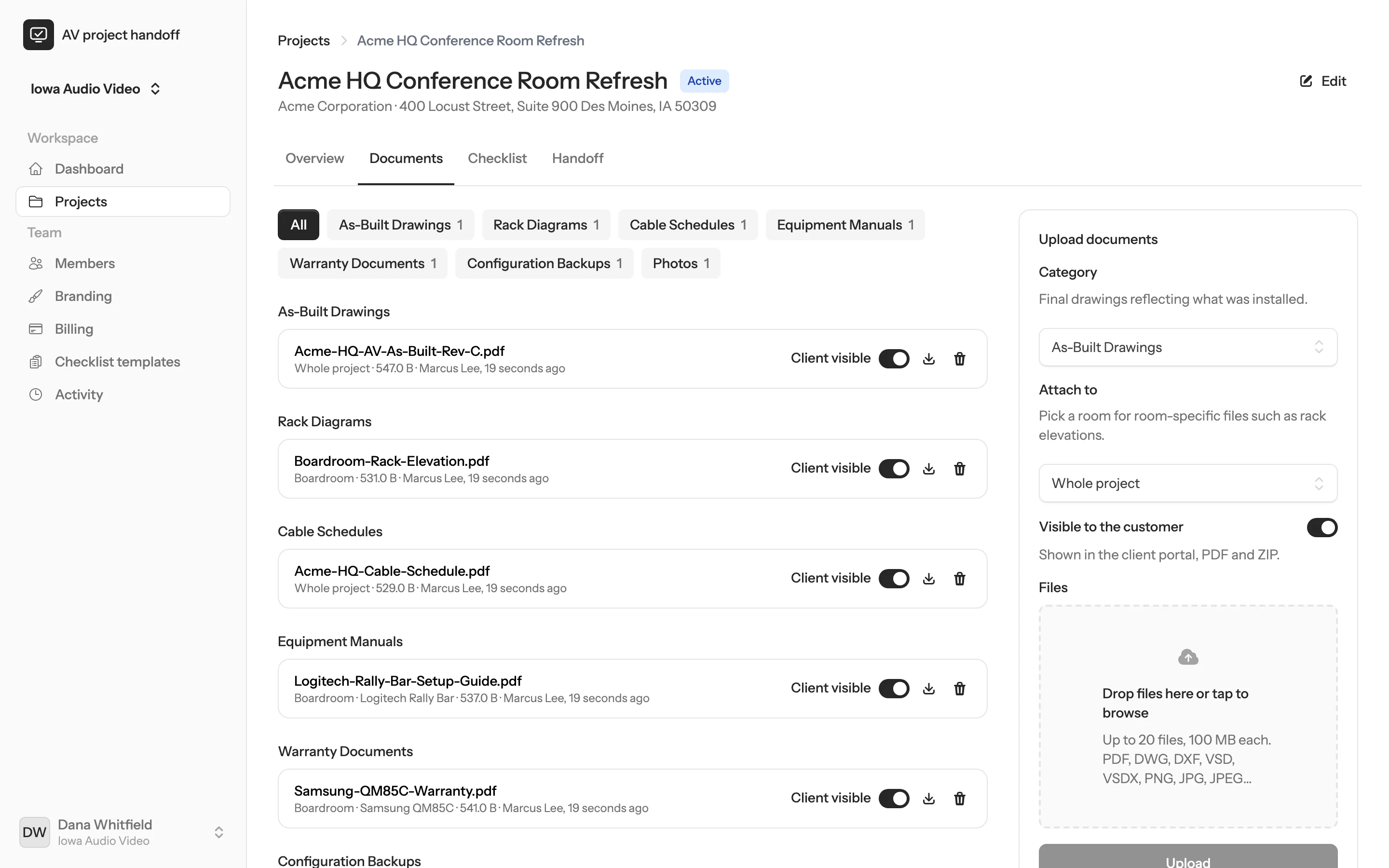
  • Choose file by file what the customer sees in the portal, the PDF and the ZIP.
  • Configuration backups stay internal by default because they can contain network details.
  • Files up to 100 MB each, checked against their actual content when uploaded.
  • As-Built Drawings
  • Rack Diagrams
  • Cable Schedules
  • Equipment Manuals
  • Warranty Documents
  • Configuration Backups
  • Training Documents
  • User Guides
  • Photos
  • Other
Documents page with files grouped by category, customer visibility switches and an upload panel.

Checklists

Closeout checklists that match how you work

Every project starts with a handoff checklist from your template. Mark items required or optional and link them to a document category.
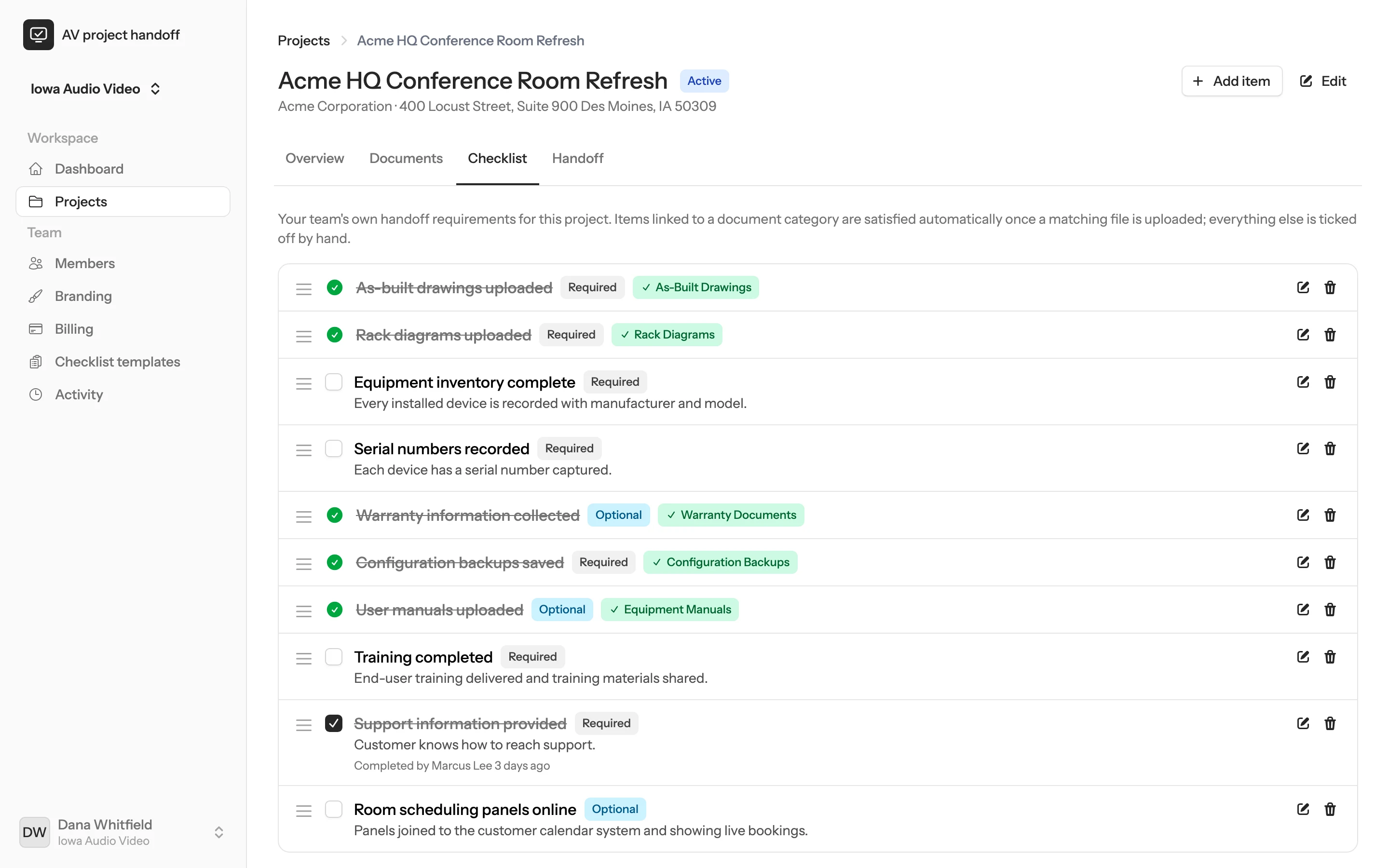
  • Items linked to a category tick themselves when a matching file is uploaded.
  • Everything else is ticked off by hand, with who completed it and when.
  • Add project-specific items and drag to reorder.
Handoff checklist with required and optional items, some completed automatically by uploaded documents.

Templates

Set your standards once

Create checklist templates for each kind of space you install, from boardrooms to training rooms, and start every project from the right one.
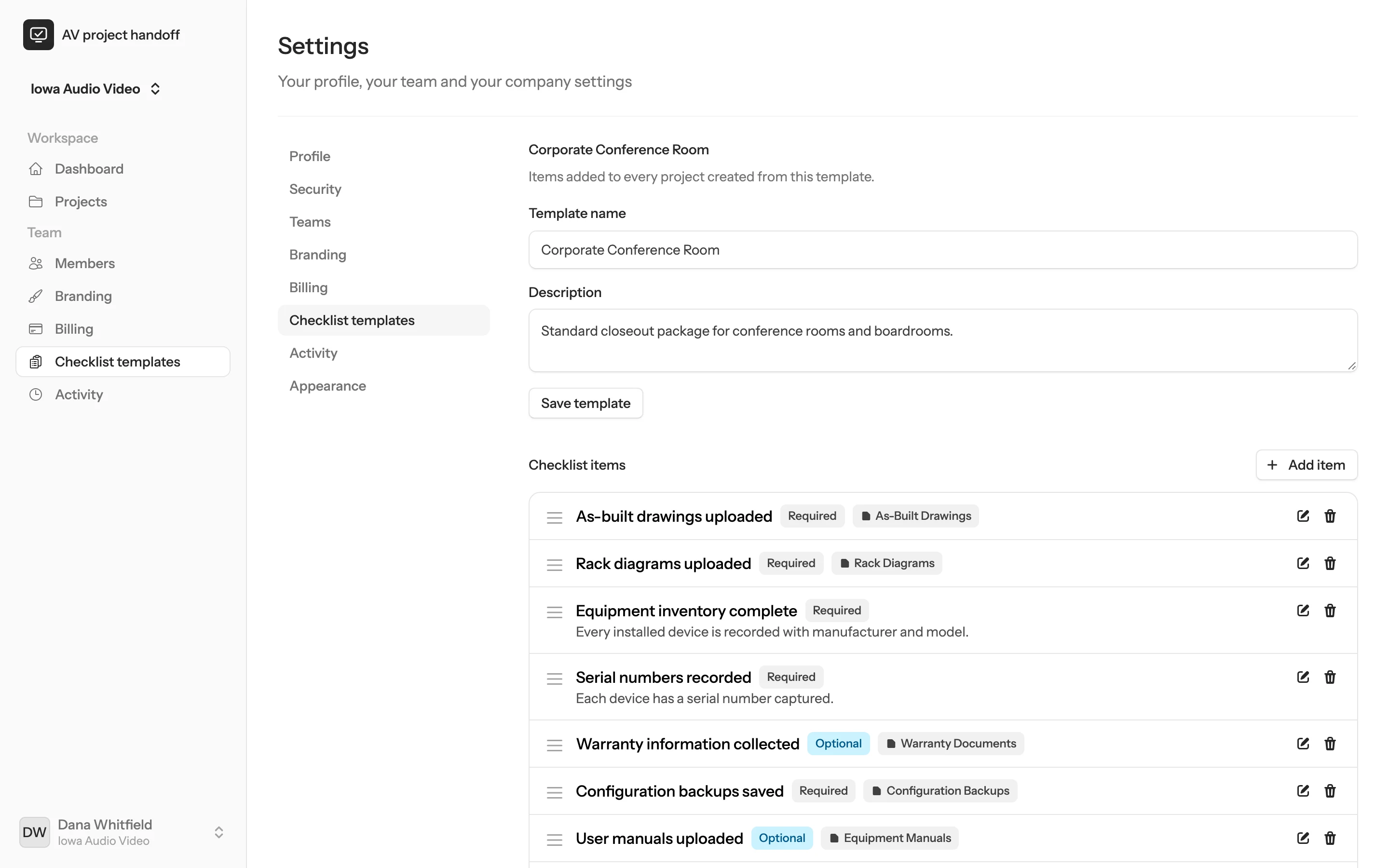
  • A sensible default checklist is included to get you started.
  • Pick a default template for new projects.
  • Owners and admins manage templates for the whole company.
Checklist template editor with required and optional items linked to document categories.

Review

Know when a project is really ready

Projects move from active to ready for review to completed. Project managers see what is left and decide when to hand over.
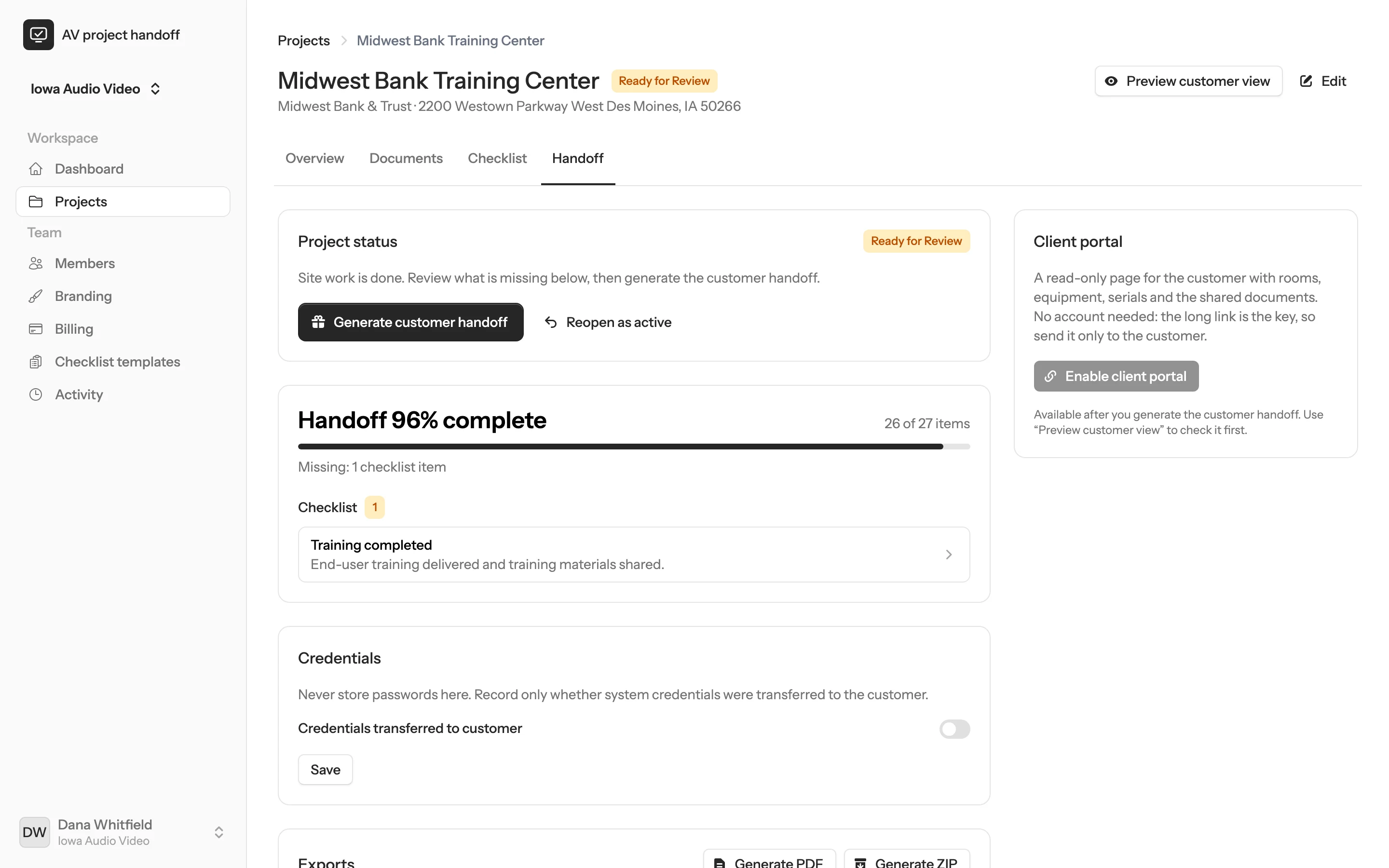
  • A completion percentage based on serial numbers, device photos and required checklist items.
  • An email to the project manager when a project is marked ready for review.
  • Reopen a project as active if something comes up.
Handoff page for a project that is ready for review, showing the remaining checklist item and the Generate customer handoff button.

Handoff

The whole package in one click

When the project is complete, generate the customer handoff. The PDF and ZIP are built in the background and you get an email when they are ready.
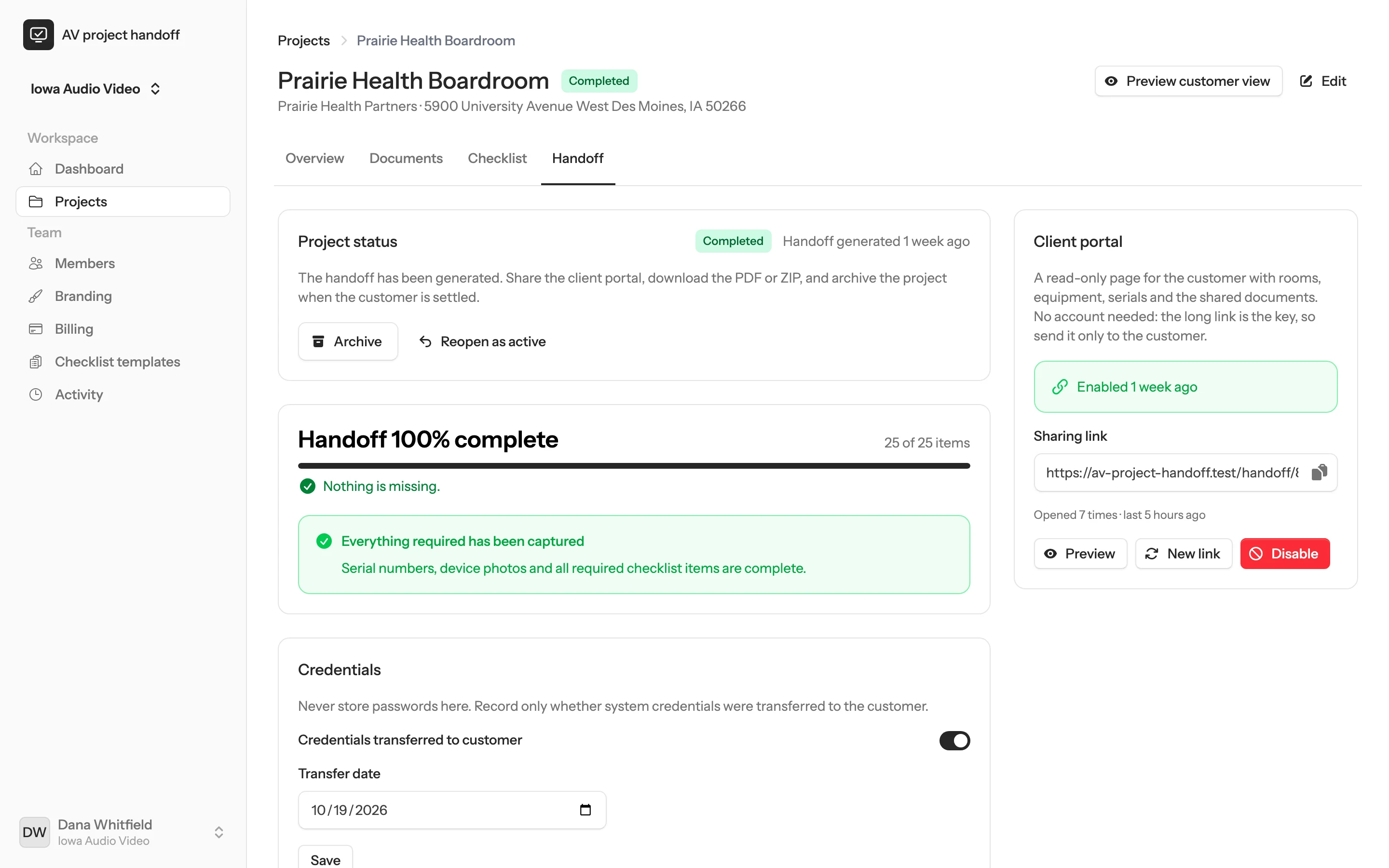
  • PDF: project overview, room summary, equipment inventory, warranty summary, document index and support details.
  • ZIP: the PDF, an equipment inventory spreadsheet and every customer-visible file in numbered folders.
  • Downloads stay available for 7 days. Generate fresh copies whenever you need them.
  • Record that credentials were transferred and when, never the passwords themselves.
Handoff page for a completed project with the client portal link, completion summary and credentials record.

Client portal

A portal your customer will actually open

A clean, read-only page with everything about their new systems. It works on any phone or computer, without an account.

  • Rooms and installed systems with photos and serial numbers.
  • The equipment inventory and every document you chose to share.
  • Your logo, brand colour and support contact details.
  • Preview exactly what your customer will see before you share anything.
  • A private link you can disable or replace at any time. Search engines are asked not to index it.

Scroll inside the window to see the whole portal.
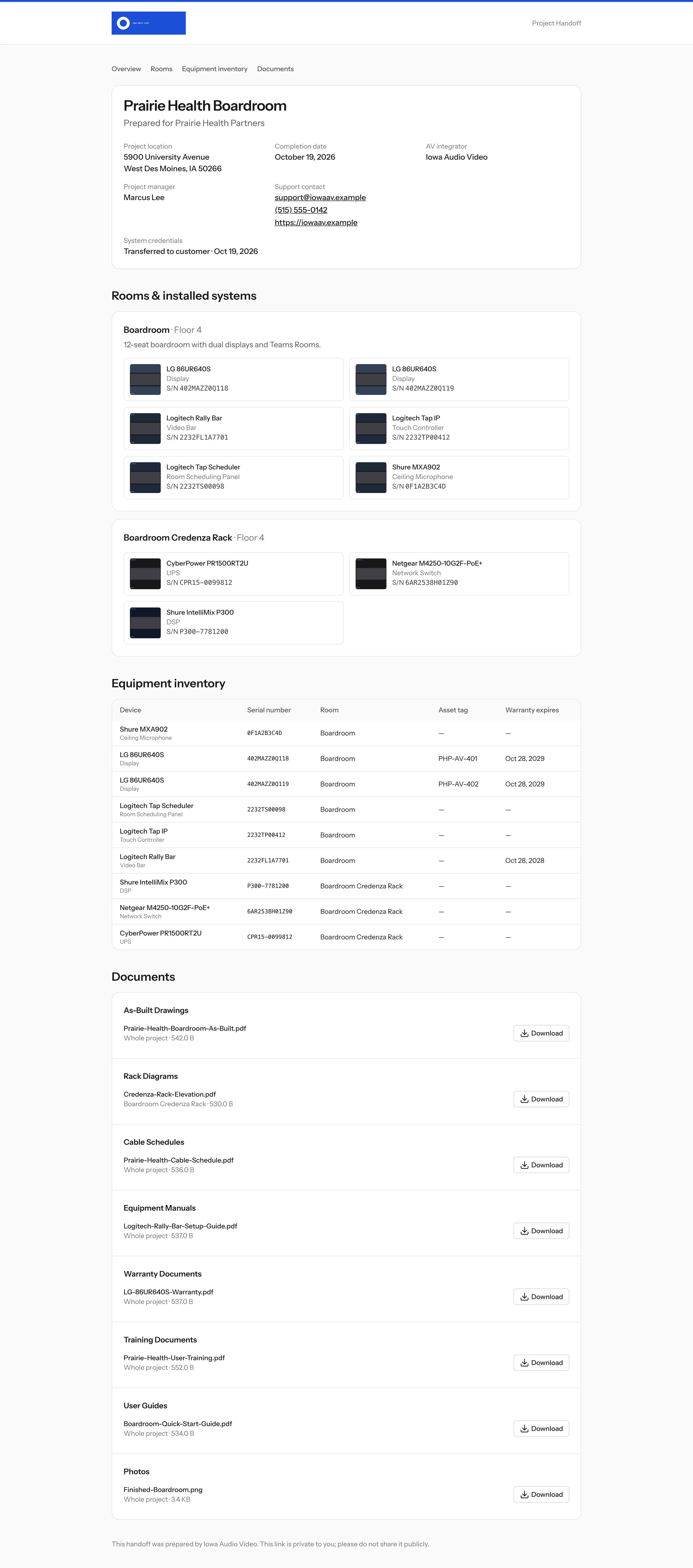
The full customer portal: project summary, rooms and installed systems, equipment inventory and shared documents.

Team

Roles that fit an integration company

Invite your team by email. Each person gets a role that matches their job.
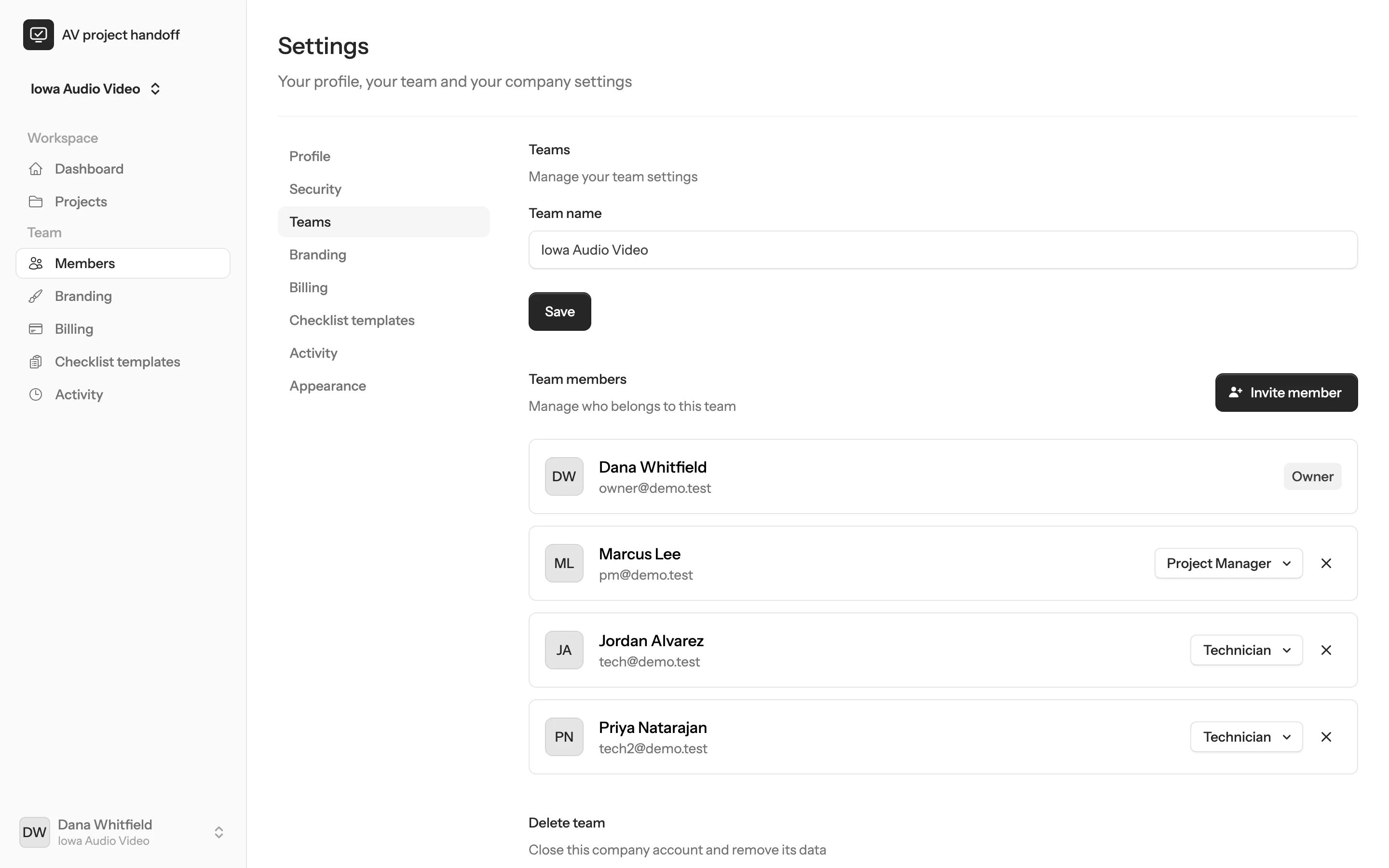
Owner
Full control of the team, including deleting it.
Admin
Manages the team, billing, branding, templates and every project.
Project Manager
Creates projects, assigns technicians, reviews completion and generates handoffs.
Technician
Works on assigned projects: adds devices, photos, documents and completes checklist items.
Team settings listing members with their roles: owner, project manager and technicians.

Branding

Your brand on every handoff

Add your logo, brand colour and support details once. They appear on the client portal, the PDF and in the ZIP package.
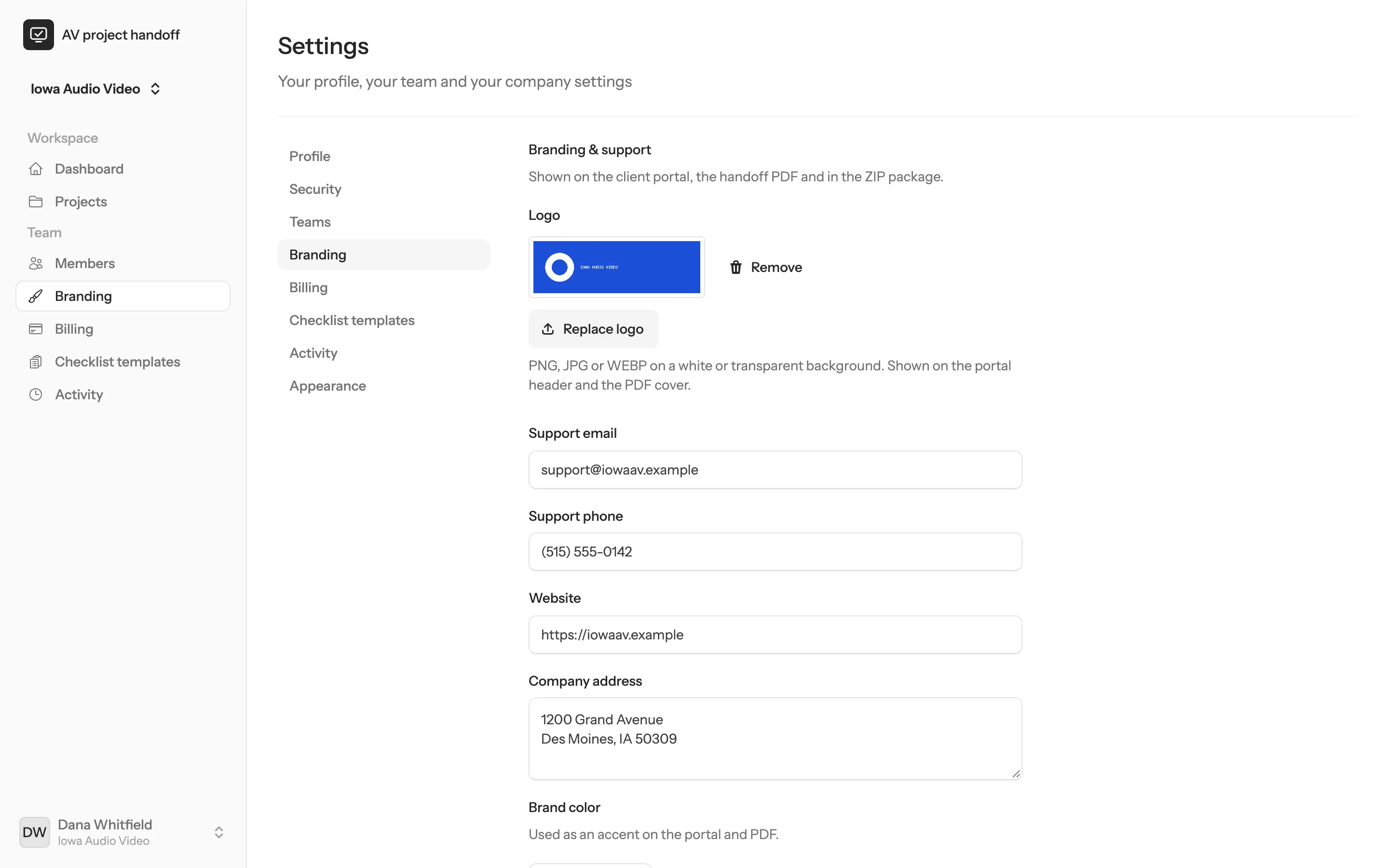
  • Your logo on the portal header and the PDF cover.
  • Support email, phone, website and address, so customers know who to call.
  • Available on the Integrator and Pro plans.
Branding settings with a company logo, support email, phone, website and address.

And more

The details that make it work every day

Activity log

Who created, changed or removed projects, rooms, devices and checklist items, and when.

Email notifications

Emails when someone is assigned to a project, a project is ready for review, a handoff is generated, an export is ready or a client portal is enabled.

Company dashboard

Active projects, projects ready for review, recent completions and missing handoff items across the company.

Two-factor and passkeys

Protect every account with an authenticator app, recovery codes or a passkey.

Unlimited users

Invite every technician and project manager. Plans are priced per company, not per seat.

Light and dark mode

Comfortable in a bright conference room or a dark ceiling space.

Make the closeout the easiest part of the job

Set up your company in minutes, invite your technicians and capture the next install as it happens.

Private beta. Request access at hello@revloy.com. Have a key? Sign up.